Google Cloud Compute Engine and Basic Networking
Introduction
In this tutorial, we will understand how Linux servers work in a traditional environment and how the same concepts are implemented in Google Cloud Platform (GCP).
This document is designed for beginners who are starting their Google Cloud journey.
What is Cloud Computing
Cloud computing is the process of using computing resources such as:
- Servers
- Storage
- Networking
- Databases
- Applications
through the internet without managing physical hardware manually.
Instead of purchasing and maintaining physical servers, cloud providers offer resources on-demand.
Popular cloud providers:
- Google Cloud Platform (GCP)
- Amazon Web Services (AWS)
- Microsoft Azure
Introduction to Google Cloud Platform
Google Cloud Platform (GCP) is Google's cloud computing platform.
It provides multiple services such as:
- Virtual Machines
- Networking
- Storage
- Kubernetes
- Databases
- Monitoring
- Security Services
Official Website:
Create Google Cloud Account
To use Google Cloud:
- Create a Google account
- Open Google Cloud Console
- Activate free trial
- Create your first project
Google Cloud provides free credits for learning purposes.
Official Link:
https://console.cloud.google.com
Google Cloud Resource Hierarchy
Google Cloud uses a hierarchical structure for organizing resources.
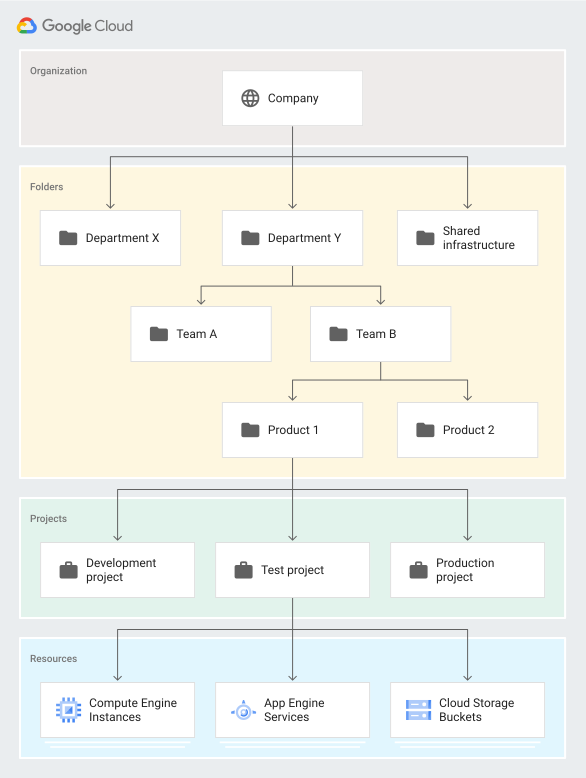
- we can read more information from this link refer here
Resource Hierarchy Structure
Organization
 ├── Folder
 │    ├── Sub Folder
 │    │      └── Project
 │    └── Project
 └── Project
Organization
Organization is the top-level container in Google Cloud.
Example:
company.com
Usually connected to:
- Google Workspace
- Company Domain
Folder
Folders help organize projects logically.
Example:
Production
Development
Testing
Finance
Engineering
Folders can also contain nested folders.
Project
Projects are the main working units inside Google Cloud.
Resources are created inside projects.
Examples:
- VM Instances
- VPC Networks
- Databases
- Storage Buckets
googe cloud compute
- for any cloud, compute and VPC are primary. fi you understand that two services, you can say , I know that cloud.
Linux Server Basics
Before creating a VM in Google Cloud, we should understand the components of a Linux server.
A typical Linux server contains:
- Operating System
- CPU
- RAM
- Disk/Storage
- Private IP Address
- Public IP Address
Operating System
The Operating System manages the server.
Examples:
- Ubuntu
- CentOS
- Debian
- Red Hat Enterprise Linux
CPU and RAM
CPU performs computations.
RAM stores temporary running data for applications.
Example:
2 vCPU
4 GB RAM
Disk and Storage
Storage is used to store:
- Operating System files
- Application files
- Logs
- Databases
Examples:
- HDD
- SSD
- Persistent Disk
Private IP Address
Private IP is used for internal communication within the network.
Example:
10.0.0.5
Private IPs are not accessible from the internet directly.
Public IP Address
Public IP is used for internet access.
Example:
34.x.x.x
Public IP allows users to access applications from outside.
Mapping Linux Server to Google Cloud VM
In Google Cloud, virtual servers are called:
Compute Engine Virtual Machines
A Compute Engine VM is still a Linux server running in the cloud.
Google Cloud manages:
- Infrastructure
- Physical Hardware
- Networking
- Hypervisor Layer
Users manage:
- Operating System
- Applications
- Configurations
Why VM Needs Networking
A VM requires networking for:
- Internal communication
- Internet access
- Application access
- Server-to-server communication
Networking components include:
- VPC
- Subnets
- Routes
- Firewall Rules
Public IP vs Private IP
| Type | Purpose |
|---|---|
| Private IP | Internal communication |
| Public IP | Internet access |
What is VPC
VPC stands for:
Virtual Private Cloud
VPC is a logically isolated network inside Google Cloud.
Resources communicate inside the VPC securely.
AWS vs Google Cloud Networking Comparison
| Feature | AWS | Google Cloud |
|---|---|---|
| VPC Scope | Regional | Global |
| Subnet Scope | Availability Zone Specific | Regional |
| Zone Selection | Subnet tied to AZ | Zone selected during VM creation |
| Same Subnet Across Zones | No | Yes |
AWS Networking Architecture
In AWS:
- VPC is regional
- Subnets are Availability Zone specific
Example:
VPC
 ├── Subnet-A (us-east-1a)
 └── Subnet-B (us-east-1b)
Google Cloud Networking Architecture
In Google Cloud:
- VPC is global
- Subnets are regional
Example:
Global VPC
 └── Subnet (us-central1)
       ├── VM in us-central1-a
       ├── VM in us-central1-b
       └── VM in us-central1-c
Important Concept
In Google Cloud:
- Subnet belongs to a region
- VM belongs to a zone
- Same subnet can be used across multiple zones inside the same region
VM Networking Flow
Internet
   ↓
Public IP
   ↓
Firewall Rule
   ↓
VPC Network
   ↓
Subnet
   ↓
Virtual Machine
Create VPC Network
Navigate to:
VPC Network → VPC Networks
Create:
- Custom VPC
- Regional Subnet
Example:
VPC Name: demo-vpc
Subnet Name: demo-subnet
Region: us-central1
CIDR: 10.10.0.0/24
Create Compute Engine VM
Navigate to:
Compute Engine → VM Instances
Configure:
- VM Name
- Region
- Zone
- Machine Type
- OS Image
- VPC
- Subnet
- Public IP
Example VM Configuration
| Component | Value |
|---|---|
| Name | nginx-server |
| Region | us-central1 |
| Zone | us-central1-a |
| OS | Ubuntu |
| Machine Type | e2-medium |
| VPC | demo-vpc |
| Subnet | demo-subnet |
Connect to VM
Use SSH from Google Cloud Console.
Example:
sudo apt update
Install Nginx
Install Nginx web server.
sudo apt install nginx -y
Start Nginx:
sudo systemctl start nginx
Enable Nginx:
sudo systemctl enable nginx
Verify Nginx Status
sudo systemctl status nginx
Access Application
Open browser:
http://PUBLIC_IP
At this stage, application may still not work because firewall access is blocked.
Why Firewall Rule is Required
Google Cloud blocks incoming traffic by default.
To allow HTTP traffic:
- Port 80 must be opened
Create Firewall Rule
Navigate to:
VPC Network → Firewall
Create Rule:
| Field | Value |
|---|---|
| Name | allow-http |
| Direction | Ingress |
| Targets | All instances |
| Source IP | 0.0.0.0/0 |
| Protocols | TCP:80 |
Firewall Networking Flow
Internet
   ↓
Firewall Rule (Allow TCP 80)
   ↓
VM Instance
   ↓
Nginx Application
Verify Application Access
Open browser again:
http://PUBLIC_IP
Nginx default page should load successfully.
Important Notes
This tutorial covered only basic firewall concepts.
Advanced topics will be covered later:
- Firewall Policies
- Allow Rules
- Deny Rules
- Target Tags
- Service Accounts
- Priority Rules
- Internal Traffic Rules
- Load Balancer Security
- Advanced Networking
Architecture Placeholders
Resource Hierarchy Diagram
Add image here
AWS vs GCP Networking Diagram
Add image here
VPC and Subnet Architecture Diagram
Add image here
VM Networking Flow Diagram
Add image here