Google Cloud Compute Engine and Basic Networking
Introduction
In this tutorial, we will understand how Linux servers work in a traditional environment and how the same concepts are implemented in Google Cloud Platform (GCP).
This document is designed for beginners who are starting their Google Cloud journey.
:::tip What you will learn
- Core building blocks of Google Cloud (Organization, Folder, Project)
- How a Linux server maps to a Compute Engine VM
- Networking basics: VPC, Subnets, Public/Private IPs
- How AWS and GCP networking differ
- Hands-on: Create a VM, install Nginx, and open it to the internet via a firewall rule :::
What is Cloud Computing
Cloud computing is the practice of using computing resources over the internet — without buying or managing physical hardware.
Typical cloud resources include:
- Servers
- Storage
- Networking
- Databases
- Applications
Instead of purchasing and maintaining physical servers, cloud providers offer resources on-demand.
Popular cloud providers:
- Google Cloud Platform (GCP)
- Amazon Web Services (AWS)
- Microsoft Azure
Introduction to Google Cloud Platform
Google Cloud Platform (GCP) is Google's cloud computing platform.
It provides services such as:
- Virtual Machines (Compute Engine)
- Networking (VPC)
- Storage (Cloud Storage, Persistent Disk)
- Kubernetes (GKE)
- Databases (Cloud SQL, Spanner, Firestore)
- Monitoring (Cloud Monitoring)
- Security Services (IAM, KMS)
Official Website: cloud.google.com
Create a Google Cloud Account
To start using Google Cloud:
- Create a Google account
- Open the Google Cloud Console
- Activate the free trial
- Create your first project
:::note Free credits Google Cloud provides free credits for new users — great for learning and experimenting. :::
Console Link: console.cloud.google.com
Google Cloud Resource Hierarchy
Google Cloud organizes resources using a clear hierarchical structure.
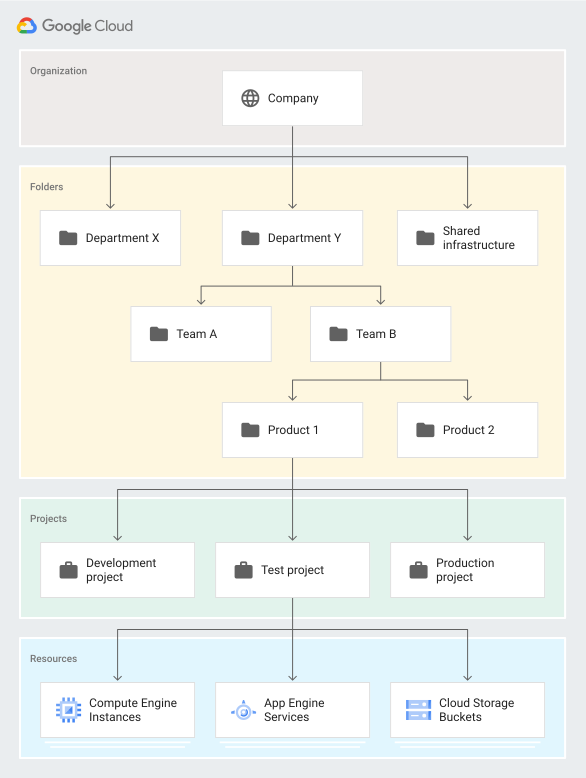
Reference: Google Cloud Resource Hierarchy (official docs)
Hierarchy Structure
Organization
 ├── Folder
 │    ├── Sub Folder
 │    │      └── Project
 │    └── Project
 └── Project
Organization
The Organization is the top-level container in Google Cloud.
Example:
company.com
It is usually connected to:
- Google Workspace
- Your company domain
Folder
Folders help organize projects logically. They can also contain nested folders.
Examples:
Production
Development
Testing
Finance
Engineering
Project
Projects are the main working units in Google Cloud — all resources live inside a project.
Examples of resources inside a project:
- VM Instances
- VPC Networks
- Databases
- Storage Buckets
Google Cloud Compute
:::info Key idea For any cloud platform, Compute and VPC are the two most fundamental services. Once you truly understand these two, you can confidently say you know that cloud. :::
Linux Server Basics
Before creating a VM in Google Cloud, let's revisit the components of a typical Linux server.
A Linux server contains:
- Operating System
- CPU
- RAM
- Disk / Storage
- Private IP Address
- Public IP Address
Operating System
The OS manages the server's hardware and software.
Examples:
- Ubuntu
- CentOS
- Debian
- Red Hat Enterprise Linux
CPU and RAM
- CPU performs computations.
- RAM holds temporary running data for applications.
Example specification:
2 vCPU
4 GB RAM
Disk and Storage
Storage holds:
- Operating System files
- Application files
- Logs
- Databases
Common types:
- HDD
- SSD
- Persistent Disk (in cloud)
Private IP Address
Used for internal communication within the network. Not directly reachable from the internet.
Example:
10.0.0.5
Public IP Address
Used for internet access — allows external users to reach the application.
Example:
34.x.x.x
Mapping a Linux Server to a Google Cloud VM
In Google Cloud, virtual servers are called Compute Engine Virtual Machines.
A Compute Engine VM is still a Linux server — it just runs in the cloud instead of on a physical machine you own.
Shared Responsibility
| Google Cloud manages | You manage |
|---|---|
| Infrastructure | Operating System |
| Physical Hardware | Applications |
| Networking | Configurations |
| Hypervisor Layer | Data |
High-Level Networking Introduction
Why a VM needs networking
A VM needs networking for:
- Internal communication
- Internet access
- Application access from users
- Server-to-server communication
Core networking components:
- VPC
- Subnets
- Routes
- Firewall Rules
Public IP vs Private IP
| Type | Purpose | Reachable from internet? |
|---|---|---|
| Private IP | Internal communication | No |
| Public IP | Internet access | Yes |
What is a VPC
VPC stands for Virtual Private Cloud — a logically isolated network inside Google Cloud where your resources communicate securely.
AWS vs Google Cloud Networking
| Feature | AWS | Google Cloud |
|---|---|---|
| VPC Scope | Regional | Global |
| Subnet Scope | Availability Zone specific | Regional |
| Zone Selection | Subnet tied to AZ | Zone selected during VM creation |
| Same Subnet Across Zones | No | Yes |
AWS Networking Architecture
In AWS:
- VPC is regional
- Subnets are Availability Zone specific
VPC (us-east-1)
 ├── Subnet-A (us-east-1a)
 └── Subnet-B (us-east-1b)
Google Cloud Networking Architecture
In Google Cloud:
- VPC is global
- Subnets are regional
Global VPC
 └── Subnet (us-central1)
       ├── VM in us-central1-a
       ├── VM in us-central1-b
       └── VM in us-central1-c
:::important Remember this In Google Cloud:
- A subnet belongs to a region
- A VM belongs to a zone
- The same subnet can be used across multiple zones inside the same region :::
VM Networking Flow
Internet
   ↓
Public IP
   ↓
Firewall Rule
   ↓
VPC Network
   ↓
Subnet
   ↓
Virtual Machine
📌 Diagram placeholder: Add VM networking flow diagram here.
Practical Demo
Step 1 — Create a VPC Network
Navigate to:
VPC Network → VPC Networks
Create:
- Custom VPC
- Regional Subnet
Example configuration:
VPC Name:    demo-vpc
Subnet Name: demo-subnet
Region:      us-central1
CIDR:        10.10.0.0/24
Step 2 — Create a Compute Engine VM
Navigate to:
Compute Engine → VM Instances
Configure the following fields:
- VM Name
- Region
- Zone
- Machine Type
- OS Image
- VPC
- Subnet
- Public IP
Example VM configuration
| Component | Value |
|---|---|
| Name | nginx-server |
| Region | us-central1 |
| Zone | us-central1-a |
| OS | Ubuntu |
| Machine Type | e2-medium |
| VPC | demo-vpc |
| Subnet | demo-subnet |
Step 3 — Connect to the VM
Use SSH from the Google Cloud Console.
Update package lists:
sudo apt update
Step 4 — Install Nginx
sudo apt install nginx -y
Start Nginx:
sudo systemctl start nginx
Enable Nginx to start on boot:
sudo systemctl enable nginx
Verify status:
sudo systemctl status nginx
Step 5 — Try to Access the Application
Open a browser:
http://PUBLIC_IP
:::warning Expected behavior At this point the application will not load — Google Cloud blocks all incoming traffic by default. We need a firewall rule. :::
Firewall Introduction
Why a Firewall Rule is Required
Google Cloud blocks incoming traffic by default. To allow HTTP traffic, port 80 must be opened.
Create a Firewall Rule
Navigate to:
VPC Network → Firewall
Create the rule with these values:
| Field | Value |
|---|---|
| Name | allow-http |
| Direction | Ingress |
| Targets | All instances |
| Source IP | 0.0.0.0/0 |
| Protocols | TCP:80 |
Firewall Networking Flow
Internet
   ↓
Firewall Rule (Allow TCP 80)
   ↓
VM Instance
   ↓
Nginx Application
Verify Application Access
Open the browser again:
http://PUBLIC_IP
The default Nginx welcome page should now load successfully. 🎉
What's Next (Covered in Later Videos)
This tutorial covered only the basics of firewalls and networking. Advanced topics will be covered in upcoming videos:
- Firewall Policies
- Allow / Deny Rules
- Target Tags
- Service Accounts
- Priority Rules
- Internal Traffic Rules
- Load Balancer Security
- Advanced Networking & Security
Diagram Placeholders
Add the following diagrams to enhance the tutorial:
- Resource Hierarchy Diagram
- AWS vs GCP Networking Comparison Diagram
- VPC and Subnet Architecture Diagram
- VM Networking Flow Diagram
- Zone Placement Diagram
Summary
In this tutorial we:
- Understood what cloud computing is and what GCP offers
- Explored Google Cloud's resource hierarchy (Organization → Folder → Project)
- Mapped Linux server concepts to Compute Engine VMs
- Compared AWS and GCP networking models
- Created a VPC, subnet, and VM
- Installed Nginx and exposed it to the internet via a firewall rule
In the next video, we will dive deeper into firewall policies, advanced VPC features, and real-world networking scenarios.